as-loadingscreen

Discord Feed Bridge (Express + Discord Bot)

This service exposes read-only JSON endpoints that your FiveM loading screen can poll to display Discord-style feeds like News / Devlog / Events. Purchase required: You need the loading screen resource. Get it here: https://alva-scripts.com/scripts/7243673arrow-up-right

Security (Read This)

Golden rule: Only give the bot access to channels you want to display publicly. Never allow the bot to view staff/private/ticket/log channels.

If the bot can see a channel, this service can read it. You do have an allowlist layer in .env, but you should still follow this rule 100%. {% endhint %}


Requirements

  • VPS or machine that can run Node.js

  • Node.js LTS (recommended)

  • Discord bot token

  • (Recommended) Domain + Nginx + HTTPS


Discord Bot Setup

1) Create a bot

Create a new application + bot in the Discord Developer Portal: https://discord.com/developers/applications?new_application=truearrow-up-right

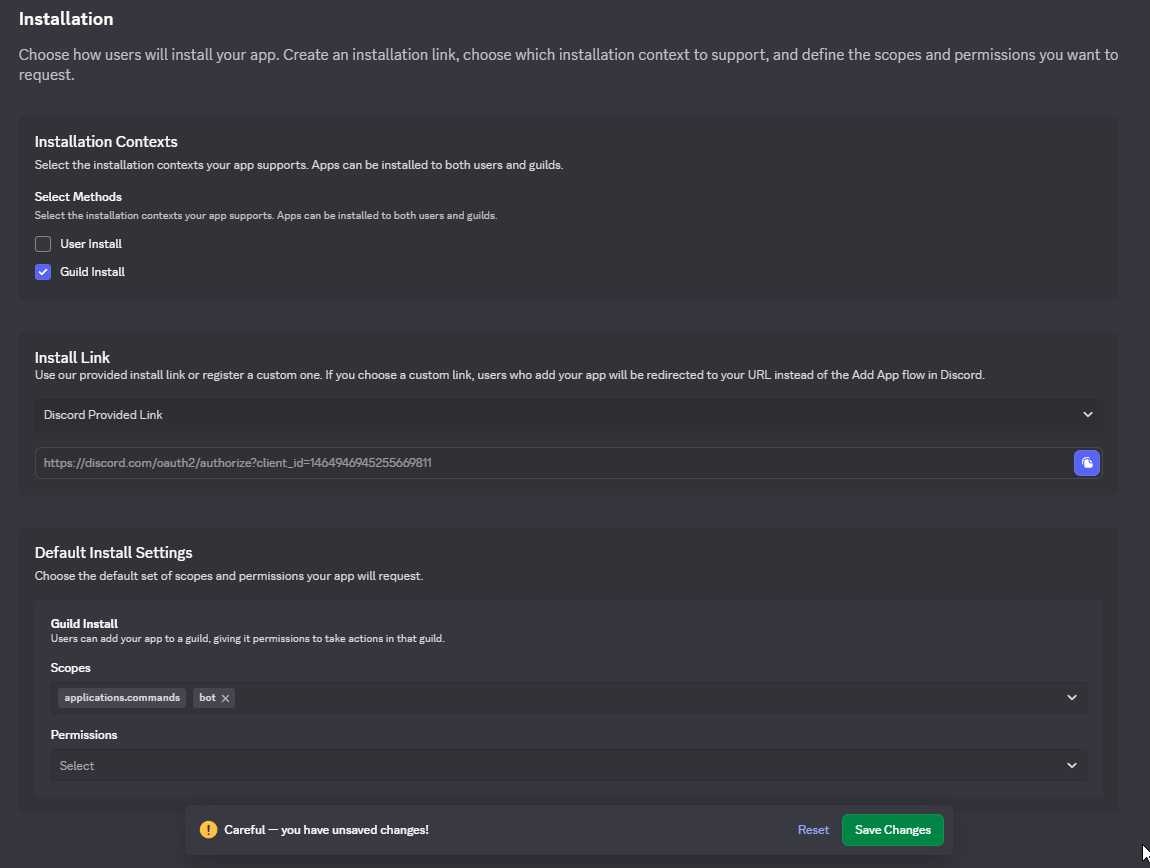
2) Invite the bot to your server

  • The bot does not need special permissions

  • Just ensure it can View Channel + Read Message History for the channels you want to expose

Invite Bot Screenshot

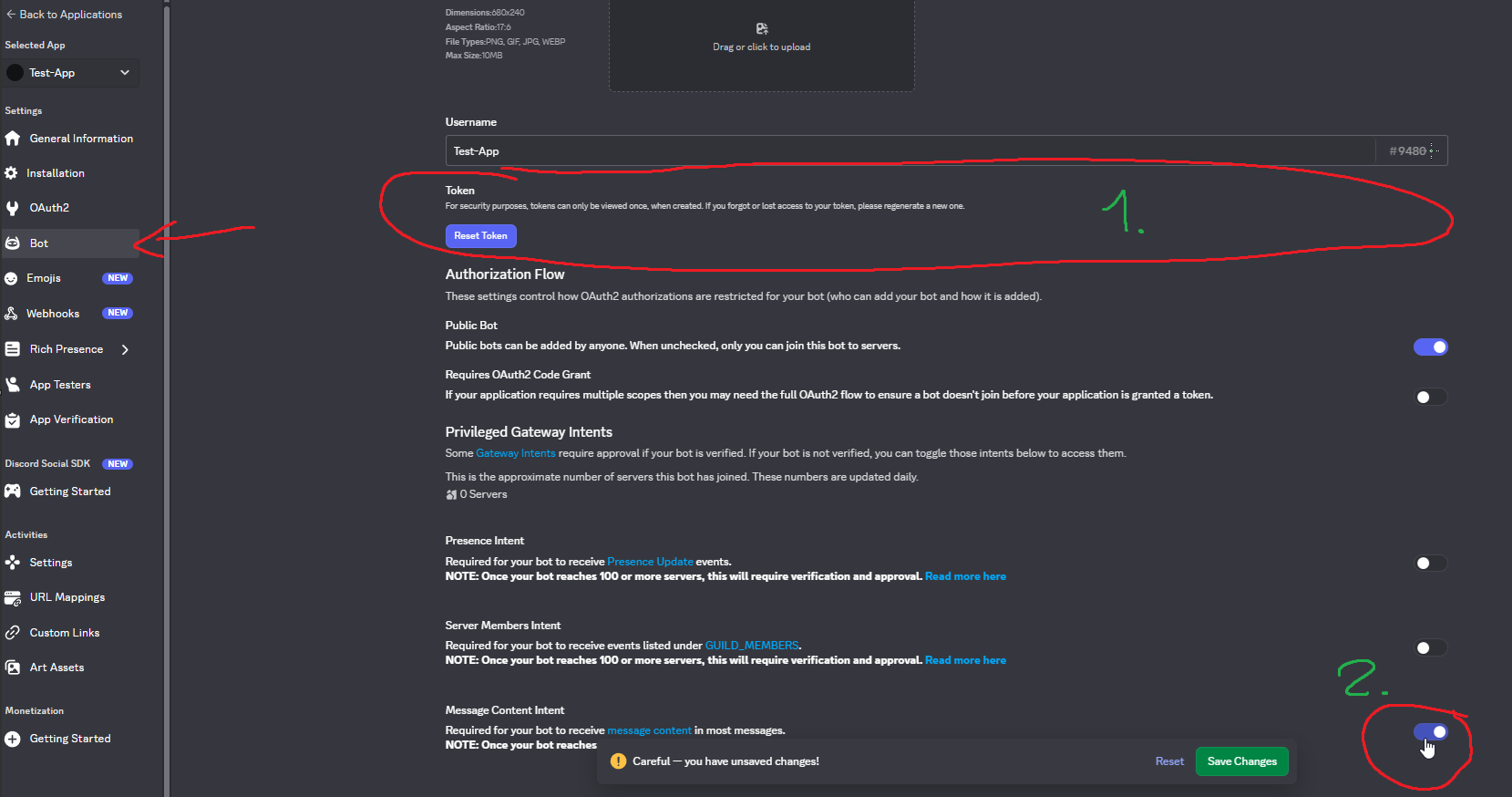
3) Enable Message Content Intent

Enable Message Content Intent so message text is available reliably:

Enable Message Content Intent Screenshot

4) Copy your bot token

Copy the token (marked as (1) in the screenshot above). Keep it secret.

5) Create .env

Copy .env.example → rename to .env and place it next to .env.example.


Install (Linux / VPS)

  1. Clone:

  1. Make script executable:

  1. Run:

The script will ask for:

  • Discord bot token

  • Guild ID (recommended)

  • Allowed channel IDs (comma separated)

  • Domain (optional — leave empty to skip Nginx/HTTPS)

1) Install Node.js (Debian/Ubuntu)

2) Install dependencies

3) Create .env

Create a file named .env in the project folder:

Notes

  • ALLOWED_CHANNEL_IDS should only include channels you want public

  • GUILD_ID ensures only channels from your server can be read

  • ALLOWED_ORIGINS should be your domain in production (not *)

4) Run

Test


Domain Setup (Optional)

If you want a clean URL like feed.yourdomain.com:

  1. In your DNS provider (Cloudflare, Namecheap, etc.) create an A record:

  • Host: feed (or @)

  • Type: A

  • Value: YOUR_VPS_PUBLIC_IP

  • TTL: Auto

Then configure Nginx + HTTPS below (or let the install script do it).


Production (Nginx + HTTPS)

systemd service

Nginx reverse proxy

HTTPS (Let’s Encrypt)


Use In Loading Screen Config


Troubleshooting

Messages are empty / missing

  • Enable Message Content Intent in the Discord Developer Portal

  • Ensure the bot can View Channel + Read Message History

403 — Channel not allowed

  • Add the channel ID to ALLOWED_CHANNEL_IDS in .env

403 — Channel not in allowed guild

  • Set the correct GUILD_ID in .env

Last updated